Showing posts with label pc. Show all posts
Wednesday, July 28, 2010
TIPS - Different ways to Shutdown PC & Shutdown XP Faster..!!
There are so many different ways to turn off your Windows XP computer, let's look at some of them:
1. The standard approach - click the Start Button with your mouse, then select the Turn Off menu and finally click the Turn Off icon on the Turn Off computer dialog. blink.gif
2. Press Ctrl+Esc key or the Win key and press u two times - the fastest approach.
3. Get the Shutdown utility from Download.com - it add the shut down shortcuts for you. Else create them yourself using approach 4.
4. Create a shutdown shortcut on your desktop. Right click on the desktop, choose New Shortcut and type shutdown -s -t 00 in the area where you are asked to specify the location of the program file. Now you can just double click this icon to turn off the computer. The best location would be your quick launch bar.
5. Press the Win key + R key to open the run window. Type shutdown -s -t 00. [s means shutdown while t means the duration after which you want to initiate the shutdown process].
If some open processes or application won't let you turn off, append a -f switch to force a shut down by closing all active processes.
6. Win+M to minimize all windows and then Alt+F4 to bring the Turn Off computer dialog.
7. Open Windows Task manager (by right clicking the Windows Task bar or Alt+Ctrl+Del) and choose Shut down from the menu. Useful when the Windows are not responding.
8. open task manager--->click on shutdown--->hold the ctrl key and click on Turn off::::::: pc will be turned off in 3 secs.. fastest method other than hard shutdown
Like previous versions of windows, it takes long time to restart or shutdown windows XP when the "Exit Windows" sound is enabled. To solve this problem you must disable this useless sound.
1. Click Start button.
2. Go to settings > Control Panel > Sound, Speech and Audio devices > Sounds and Audio Devices > Sounds.
3. Then under program events and windows menu click on "Exit Windows" sub-menu and highlight it. Now from sounds you can select, choose "none" and then click Apply and OK.
4. Now you should see some improvements when shutting down your system.
Tips: USE YOUR NOTEPAD AS DIARY.

Ever wanted to maintain a diary on your PC ?
Now, you can do it without the use of a software !
USE NOTEPAD !
Do The Following :
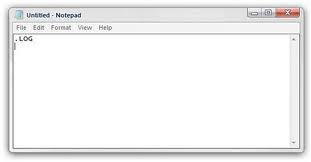
1. Open Notepad
2. Type : .LOG
3. Save it with any name say 'Diary'
4. Open Diary.txt again
Wow you see today's date and time, so start writing your Diary !
Tips: Rename a Series of Files
When you download photos from your digital camera, they often have unrecognizable names. You can rename several similar files at once with the following procedure. This also works for renaming other types of files.
1. Open the My Pictures folder. (Click Start, and then click My Pictures.) Or open another folder containing files that you want to rename.
2. Select the files you want to rename. If the files you want are not adjacent in the file list, press and hold CTRL, and then click each item to select it.
3. On the File menu, click Rename.
4. Type the new name, and then press ENTER.
Tips: Windows XP
How to change anyone password in xp without knowing it
If you log in to admin account and want to change password of admin or user then do the following steps
1. click start then run type cmd in it and hit enter command prompt opens
2. type net user it will show you user present in xp
3. type net user desired username new password and press enter all done
Make Xp genuine
MaKe Xp GeNuIne in 1 SeCond!
JUST COPY THE FOLLOWING CODE IN A NOTEPAD AND SAVE IT AS"GENUINE.REG"AND RUN THAT REG FILE!
Its All.
IT IS 100% TEATED AND WILL WORK SURE!
By making your XP genuine,u can now install softwares on ur pc
such as Windows Media Player 11 , Internet Explorer 7 , etc.
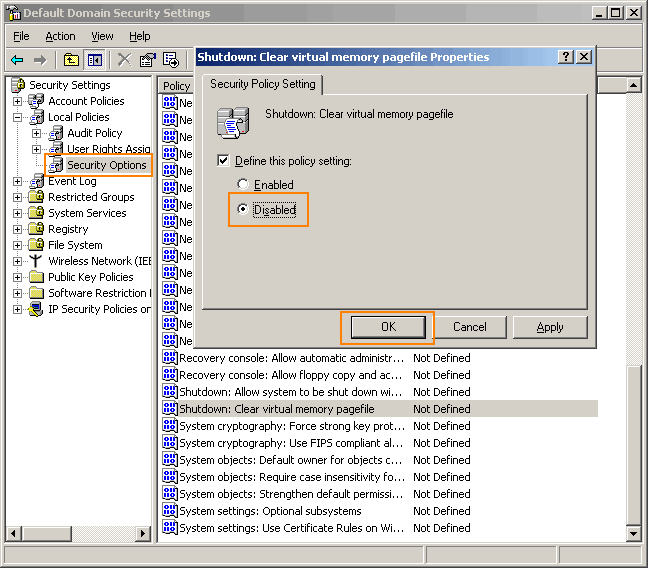
Go to Control panel Administrative tools, local security policy.
then goto local policies ---> security options.
Then change the option for "Shutdown: Clear Virtual Memory Pagefile"
Create a Password Reset Disk
If you’re running Windows XP Professional as a local user in a workgroup environment, you can create a password reset disk to log onto your computer when you forget your password. To create the disk:
1.Click Start, click Control Panel, and then click User Accounts.
2.Click your account name.
3.Under Related Tasks, click Prevent a forgotten password.
4.Follow the directions in the Forgotten Password Wizard to create a password reset disk.(u can use pen drive also)
5.Store the disk in a secure location, because anyone using it can access your local user account.
Disable CD Autorun
( WinXP PRO Only)
1) Click Start, Run and enter GPEDIT.MSC
2) Go to Computer Configuration, Administrative Templates, System.
3) Locate the entry for Turn autoplay off and modify it as you desire.
If you log in to admin account and want to change password of admin or user then do the following steps
1. click start then run type cmd in it and hit enter command prompt opens
2. type net user it will show you user present in xp
3. type net user desired username new password and press enter all done
Make Xp genuine
MaKe Xp GeNuIne in 1 SeCond!
JUST COPY THE FOLLOWING CODE IN A NOTEPAD AND SAVE IT AS"GENUINE.REG"AND RUN THAT REG FILE!
Windows Registry Editor Version 5.00
[HKEY_LOCAL_MACHINE\SOFTWARE\Microsoft\Windows NT\CurrentVersion\WPAEvents]
"OOBETimer"=hex:ff,d5,71,d6,8b,6a,8d,6f,d5,33,93,fd
"LastWPAEventLogged"=hex:d5,07,05,00,06,00,07,00,0f,00,38,00,24,00,fd,02
[HKEY_LOCAL_MACHINE\SOFTWARE\Microsoft\Windows NT\CurrentVersion]
"CurrentBuild"="1.511.1 () (Obsolete data - do not use)"
"InstallDate"=dword:427cdd95
"ProductId"="69831-640-1780577-45389"
"DigitalProductId"=hex:a4,00,00,00,03,00,00,00,36,39,38,33,31,2d,36,34,30,2d,\
31,37,38,30,35,37,37,2d,34,35,33,38,39,00,5a,00,00,00,41,32,32,2d,30,30,30,\
30,31,00,00,00,00,00,00,00,00,0d,04,89,b2,15,1b,c4,ee,62,4f,e6,64,6f,01,00,\
00,00,00,00,27,ed,85,43,a2,20,01,00,00,00,00,00,00,00,00,00,00,00,00,00,00,\
00,00,00,00,00,00,00,00,00,00,00,31,34,35,30,34,00,00,00,00,00,00,00,ce,0e,\
00,00,12,42,15,a0,00,08,00,00,87,01,00,00,00,00,00,00,00,00,00,00,00,00,00,\
00,00,00,00,00,00,00,00,00,00,00,00,00,00,00,00,00,94,a2,b3,ac
"LicenseInfo"=hex:9e,bf,09,d0,3a,76,a5,27,bb,f2,da,88,58,ce,58,e9,05,6b,0b,82,\
c3,74,ab,42,0d,fb,ee,c3,ea,57,d0,9d,67,a5,3d,6e,42,0d,60,c0,1a,70,24,46,16,\
0a,0a,ce,0d,b8,27,4a,46,53,f3,17
Its All.
IT IS 100% TEATED AND WILL WORK SURE!
By making your XP genuine,u can now install softwares on ur pc
such as Windows Media Player 11 , Internet Explorer 7 , etc.
Go to Control panel Administrative tools, local security policy.
then goto local policies ---> security options.
Then change the option for "Shutdown: Clear Virtual Memory Pagefile"
Create a Password Reset Disk
If you’re running Windows XP Professional as a local user in a workgroup environment, you can create a password reset disk to log onto your computer when you forget your password. To create the disk:
1.Click Start, click Control Panel, and then click User Accounts.
2.Click your account name.
3.Under Related Tasks, click Prevent a forgotten password.
4.Follow the directions in the Forgotten Password Wizard to create a password reset disk.(u can use pen drive also)
5.Store the disk in a secure location, because anyone using it can access your local user account.
Disable CD Autorun
( WinXP PRO Only)
1) Click Start, Run and enter GPEDIT.MSC
2) Go to Computer Configuration, Administrative Templates, System.
3) Locate the entry for Turn autoplay off and modify it as you desire.
Labels:
change password,
computer,
Computer Tips,
disable cd,
forgot password,
genuine,
laptop,
notepad,
password reset disk,
pc,
shutdown,
Tips,
tricks,
xp
Tips: How to hide your drives.
If u r having any important docs and or some other type of data u r afraid about it . don't worry windows XP provides (not official ) a utility by which u can hide urs one or more drives .
1. Go to Start > run > type "diskpart".
a dos window will appear with following di$$$$$$ion.
DISKPART>
2. then type "list volume"
this will look like it
Volume### Ltr Label Fs Type Size Status Info
-------------- ---- ------ --- ----- ---- ------- -----
Volume 0 F DC-ROM
Volume 1 C NTFS Partition 7000MB Healthy
Volume 2 D soft NTFS Partition 8000MB Healthy
Volume 3 E ---- NTFS Partition 8000MB Healthy
3. if u wanna hide drive E then type "select volume 3"
then a message will appear in same windows { Volume 3 is the selected volume}
4. now type " remove letter E"
now a message will come { Diskpart Removed the Drive letter }
sometime it requires the reboot the computer .
Diskpart will remove the letter .Windows XP is not having capabilty to identify the unkown volume.
Don't afraid ur Data will ramin same .
to Come backe the Drive repeat the process . but in 4th step which is shown in this post replace " remove" to "assign"
i mean type " assign letter E"
Its all
Tips: WATCH MOVIES IN MS PAINT
> Open your favorite movie palyer and play the move
> Hit "PrintScreen", keep playing the movie in the player, dont stop it.
> Open MsPaint.
> Select "Edit>Paste" Or Hit "CTRL+V"
> Now You can watch movies in Paint!
> But there are no Pause, Next, Previous, Stop etc. buttons
> Experiment with other formats too, it doesn't play DivX , Flash movies, etc.
Tips: How To Lock Computer Shortcut
Creating Shortcut To Lock Computer
1. Right click an empty spot on the desktop, point to New and click Shortcut.
2. In the Create Shortcut dialog box, copy the following into the 'Type the location' of the item text box: "rundll32 user32.dll,LockWorkStation" remove quotes while typing.
3. Click Next.
4. In "Type a name for this shortcut", type LOCK or whatever you want and Click Finish
5. Now just click on that icon and enjoy. ...
Tips: How to change drive letters
To change drive letters (useful if you have two drives and have partitioned the boot drive, but the secondary drive shows up as "D")
Go to Start > Control Panel> Administrative Tools > Computer Management, Disk Management,
>then right-click the partition whose name you want to change
(click in the white area just below the word "Volume")
>select "change drive letter and paths."
From here you can add, remove or change drive letters and paths to the partition.
Tips: check who used your Pc in your Absence?
Steps:-->
start > run >eventvwr.msc
Events are stored in three log files: Application, Security, and System. These logs can be reviewed and archived.
For our purposes we want the System log. Click on "System" in the left-hand column for a list of events.
Look for a date and time when you weren't home and your computer should have been off.
double click on the eg: info n it will show u the detail.
You can also use this log to see how long someone was on the computer. Just look at the time the computer was turned on and off for that day.
Labels:
computer,
Computer Tips,
in absense,
pc,
Tips,
tricks,
windows,
xp
Tips: lock, hide & password protect your folders...
Trick to lock folder
using this trick not only for locking folder but also hide it....
copy following script:-
cls
@ECHO OFF
title Folder Locker
if EXIST "Control Panel.{21EC2020-3AEA-1069-A2DD-08002B30309D}" goto UNLOCK
if NOT EXIST Locker goto MDLOCKER
:CONFIRM
echo Are you sure u want to Lock the folder(Y/N)
set/p "cho=>"
if %cho%==Y goto LOCK
if %cho%==y goto LOCK
if %cho%==n goto END
if %cho%==N goto END
echo Invalid choice.
goto CONFIRM
:LOCK
ren Locker "Control Panel.{21EC2020-3AEA-1069-A2DD-08002B30309D}"
attrib +h +s "Control Panel.{21EC2020-3AEA-1069-A2DD-08002B30309D}"
echo Folder locked
goto End
:UNLOCK
echo Enter password to Unlock folder
set/p "pass=>"
if NOT %pass%==mayank goto FAIL
attrib -h -s "Control Panel.{21EC2020-3AEA-1069-A2DD-08002B30309D}"
ren "Control Panel.{21EC2020-3AEA-1069-A2DD-08002B30309D}" Locker
echo Folder Unlocked successfully
goto End
:FAIL
echo Invalid password
goto end
:MDLOCKER
md Locker
echo Locker created successfully
goto End
:End
now go for following few steps
1. paste above text into notepad.
2. save that file by extension .bat ( name is ur choice)
3. now on ur screen there is a bat file appear.
4. double click on that file.
5. a new folder named locker will appear on the screen.
6. keep the files and folders u want to lock in that locker folder.
7. now again double click on that batch file to lock that locker folder.
8. after locking that folder it will become hidden.
9. to open that folder double click on that bat file
10. type ur password & open that folder.
11. password for the locked folder is mayank
Labels:
change password,
computer,
Computer Tips,
hide,
laptop,
lock,
pc,
protactfolders,
Tips,
tricks,
windows,
xp
Tips: How to change administrator password without know
1.Right click on MYCOMPUTER-MANAGE-LOCALUSERS&GROUPS-USERS
2.Right click on username (like administrator)
3.click on SET PASSWORD-PROCEED-
4.now set new password without entering old password.
Labels:
admin,
administrator,
change password,
computer,
Computer Tips,
laptop,
networking,
pc,
Tips,
tricks,
xp
Tips: Use your photo as ICON
1.open MSPAINT
2.open any image file
3.go to "saveas"
filename="anything"
save as type="24bit bitmap (*.bmp,*.bid)
save in: mydocument;
4.now right click on any folder
5.goto PROPERTIES-CUSTOMIZE-CHANGEICON-BROWSE-M YDOCUMENT- "ANYTHING"
then press ok..
3.go to "saveas"
filename="anything"
save as type="24bit bitmap (*.bmp,*.bid)
save in: mydocument;
4.now right click on any folder
5.goto PROPERTIES-CUSTOMIZE-CHANGEICON-BROWSE-M
then press ok..
Tips: hiding folders... without setting properties hidden
Right click on folder -> properties -> Customize -> change icon -> choose 13th icon in second row -> ok -> apply.
right click on folder -> rename -> Press Alt+0160 ->enter.
now folder will not be visible
Tips: Make Acrobat Reader Load Faster
Do u get irritated when acrobat reader takes 5/10 seconds to load when you want to open a pdf document. There is a way to speed up the loading.
Steps:
1. Go to the installation folder of acrobat reader(C:\program files\adobe\acrobat\reader\.. whatever)
2. Move all the files and folders from the "plugins" directory to the "Optional" directory. (I repeat.. cut and paste the files NOT copy & paste).
Also make sure that acrobat reader is not open else it will lock the files and not allow you to move the files).
Now Adobe Acrobat will really fast and be just as good as notepad
Labels:
Acrobat reader,
computer,
Computer Tips,
load faster,
notepad,
pc,
Tips,
tricks,
xp
Tips: Test your ANTI-VIRUS
here is a cool trick to test ur anti-virus tht itz workin properly or not
copy this code n paste it in NOTEPAD FILE n SAVE it as VIRUS.EXE...
CODE--->
X5O!P%@AP[4\PZX54(P^)7CC)7}$EICAR-STANDARD-ANTIVIRUS-TEST-FILE!$H+H*
if ur anti virus detects or deletes it its in a working condition............
but if itz not deletin diz file den u need to change your ANTI-VIRUS
Friday, June 18, 2010
Tips: The inbuilt windows programs:----- !
Programs :
1. Private Character Editor :
Used for editing fonts,etc.
** start>>Run
** Now, type eudcedit
2. Dr. Watson :
This an inbuilt windows repairing software !
** start>>Run
** Now, type drwtsn32
3. Media Player 5.1 :
Even if you upgrade your Media Player, you can still access your old player in case the new one fails !!!
** start>>Run
** Now, type mplay32
4. iExpress :
Used to create Setups
You can create your own installers !
** start>>Run
** Now, type iexpress
exe files in run command
cmd : to open dos (with dos key)
calc : to open calculator
magnify : to open magnifier
regedit : to change registries
control : to open control panel
dvdplay : to open window media player
dxdiag : system information
charmap : to open character map
ntbackup : to open backup n restore box
taskmgr : to open task manager
msconfig : hide/unhide icons on taskbar(right side)
paintbrush : mspaint
group policy : gpedit.msc
1. Private Character Editor :
Used for editing fonts,etc.
** start>>Run
** Now, type eudcedit
2. Dr. Watson :
This an inbuilt windows repairing software !
** start>>Run
** Now, type drwtsn32
3. Media Player 5.1 :
Even if you upgrade your Media Player, you can still access your old player in case the new one fails !!!
** start>>Run
** Now, type mplay32
4. iExpress :
Used to create Setups
You can create your own installers !
** start>>Run
** Now, type iexpress
exe files in run command
cmd : to open dos (with dos key)
calc : to open calculator
magnify : to open magnifier
regedit : to change registries
control : to open control panel
dvdplay : to open window media player
dxdiag : system information
charmap : to open character map
ntbackup : to open backup n restore box
taskmgr : to open task manager
msconfig : hide/unhide icons on taskbar(right side)
paintbrush : mspaint
group policy : gpedit.msc
Computer Tips : Stop Password Expiration
After you have run Windows XP for a while, you may receive this message when you log on: "Your password will expire in 14 days.....".
By default, Windows XP is set up with passwords which will expire after 42 days.
And 14 days in advance, Windows will start warning you of this fact.
Go to Start > Run > type control userpasswords2
Select the Advanced tab in the User Accounts window.
Press the Advanced button below the Advanced user management header.
Select Users in the Local Users and Groups.
In the right pane, right-click the user name for which you want to change the setting, and select Properties.
On the General tab, check Password never expires.
Click Apply and OK (all the way out)
By default, Windows XP is set up with passwords which will expire after 42 days.
And 14 days in advance, Windows will start warning you of this fact.
Go to Start > Run > type control userpasswords2
Select the Advanced tab in the User Accounts window.
Press the Advanced button below the Advanced user management header.
Select Users in the Local Users and Groups.
In the right pane, right-click the user name for which you want to change the setting, and select Properties.
On the General tab, check Password never expires.
Click Apply and OK (all the way out)
Labels:
computer,
Computer Tips,
pc,
Tips,
tricks
Tips: Internet Error Codes and Meaning
Sometime you are browsing the internet and trying to open any website, your e-mail and any FTP sites , but you see different error codes there. You should be familiar with these error codes. You can solve these problems if you are well-known with the meaning of error codes.
400 : This is bad request error, First check you may be typing wrong URL name and server could not understand your request.
401 : You are trying to open any unauthorized access site or page. Check your username and password if you are trying to open any webpage.
402 : Payment Required Error
403 : You are trying to open any forbidden page and you are blocked by that domain.
404 : Here you are trying to open the webpage that was removed or re-named, also check the URL spelling.
408 : This is time out error. you should send the request with in time that the server set for you.
400 : This is bad request error, First check you may be typing wrong URL name and server could not understand your request.
401 : You are trying to open any unauthorized access site or page. Check your username and password if you are trying to open any webpage.
402 : Payment Required Error
403 : You are trying to open any forbidden page and you are blocked by that domain.
404 : Here you are trying to open the webpage that was removed or re-named, also check the URL spelling.
408 : This is time out error. you should send the request with in time that the server set for you.
Labels:
computer,
Computer Tips,
error codes,
internet,
Internet Tips,
pc
Subscribe to:
Posts (Atom)


.jpg)