Showing posts with label Computer Tips. Show all posts

Tuesday, April 26, 2011

USB 2.0 vs USB 3.0 Latest technology Updates


What is USB?
USB stands for Universal Serial Bus. Popular USB versions USB 2.0 & USB 3.0.

Difference between USB 2.0 & USB 3.0
The USB 3.0 specification was published on 12 November 2008. Its main goals were to increase the data transfer rate (up to 5Gbps), to decrease power consumption, to increase power output, and to be backwards-compatible with USB 2.0.[7] USB 3.0 includes a new, higher speed bus called SuperSpeed in parallel with the USB 2.0 bus.[8] For this reason, the new version is also called SuperSpeed.
Points:
USB 2.0 has a maximum data transfer speed of 480mbps, and FireWire 800 has a maximum speed of 800mbps. USB 3.0 shatters those speeds with a maximum data throughput of 4.8gbps! yes, that’s 4,800mbps!

USB 3.0 Specifications
USB 3.0 is introduced now to increase the data transfer speed in minimum time with decreasing power consumption. Here are the specifications of USB 3.0
  • Transfer Rate
    Data transfer rate of USB 3.0 is maximum 4.8 Gb/s.
  • Data Transfer
    USB 3.0 introduces full duplex data transfer. Two of five lanes are reserved for transmitting data, while another pair is dedicated to receiving data, meaning that USB 3.0 can read and write data simultaneously at full speed. Previous USB specifications did not support bi-directional data transfer.
  • Power
    The unit load has been increased to 150 mA and a configured device can draw up to six unit loads, which adds up to 900 mA. This exceeds USB 2.0 by 80% and leads to faster recharging or powering of more than four devices from a single hub. In addition, the minimum device operating voltage was dropped from 4.4 V to 4 V, which saves energy.
  • Power Management
    USB 3.0 suspends device polling, which is replaced by interrupt-driven protocol. As a result, idle devices won’t experience a power drain since a signal from the device is required to initiate data transfer. With USB 2.0 the host controller used to look for active transfers, slowly draining power. Briefly, USB 3.0 supports idle, sleep, and suspend states, as well as link-, device-, and function-level power management.
  • Physical Appearance
    The above described specifications are also represented in the physical appearance of USB 3.0. While the cable was previously described to be thicker because it contains four more wires than USB 2.0, this appears not to be the case now. The plug, however, is a dead giveaway for USB 3.0. It contains an additional set of connectors, as illustrated in the image below.

Positive Points:
New technology is very exciting. But what does it mean? Will you still be able to use your old USB hardware? How will the new USB technology affect your everyday life? What are the benefits?
  • Compatibility
    USB 3.0 is backwards compatible with USB 2.0. So whether you get a new USB 3.0 device or a new computer that supports USB 3.0, your old device will be able to communicate with the new interface. Naturally, it will do so at the old USB 2.0 speed. However, you won’t be able to use a USB 3.0 cable to connect a USB 2.0 device.
  • Transfer Rate
    Now I bet all this Megabit and Gigabit per second numbers sound impressive, but what does it actually translate to? Well, let me give you an example. With USB 3.0 you could transfer a 10 GB file from your computer to an external drive in approximately 25 seconds. With USB 2.0 this would take more than five minutes.
  • Benefits
    The devices that will benefit most from USB 3.0 are those that already outspeed USB 2.0, including HD webcams, Blu-Ray drives, or some external hard drives.
  • Support by Operating Systems
    Windows Vista, Windows 7, and Linux already support USB 3.0. Mac is expected follow. Given its age, Windows XP will probably not receive an update to support the new interface.

Negative Points:
I was tempted to report that there is no bad news, but that’s not true. Let’s say bad news is minimal.
  • Cable
    The maximum cable length USB 3.0 supports is reduced to approximately three meters, opposed to five meters with USB 2.0. However, using hubs, the maximum length can be extended to 18 meters.
  • Speed Limit
    Naturally, not all devices will be able to make use of the increased speed in USB 3.0. Magnetic hard drives for example, are limited by their RPM and the corresponding read/write speed. Hence, USB 3.0 will not unfold its full beauty until computers are equipped per default with faster hardware, such as solid state drives. But we all know how speedy progress is in the IT world. Give it a year or two and you will be able to fully benefit from USB 3.0.

Tuesday, November 30, 2010

Correct way to work on the Computer


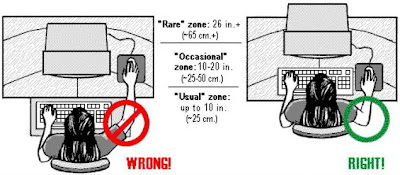
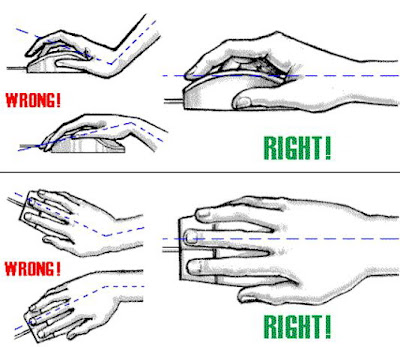
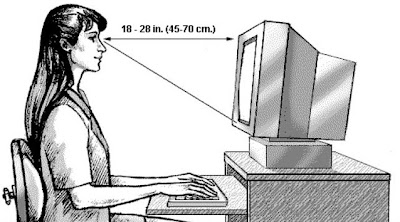
For everyone who works daily on a computer. The mistakes daily mouse and keyboard usage will result in Carpal Tunnel Syndrome! Use the mouse and keyboard correctly. View below for the RIGHT TECHNIQUES.. ....

Correct way to work on the Computer


DIL-KI-BAAT


Correct way to work on Keyboard

Correct way to work on Mouse
DIL-KI-BAAT
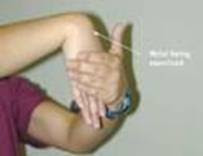
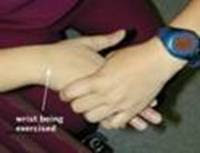
Hand Exercises for Carpal Tunnel Syndrome


Wednesday, July 28, 2010

TIPS - Different ways to Shutdown PC & Shutdown XP Faster..!!


There are so many different ways to turn off your Windows XP computer, let's look at some of them:


1. The standard approach - click the Start Button with your mouse, then select the Turn Off menu and finally click the Turn Off icon on the Turn Off computer dialog. blink.gif

2. Press Ctrl+Esc key or the Win key and press u two times - the fastest approach.

3. Get the Shutdown utility from Download.com - it add the shut down shortcuts for you. Else create them yourself using approach 4.

4. Create a shutdown shortcut on your desktop. Right click on the desktop, choose New Shortcut and type shutdown -s -t 00 in the area where you are asked to specify the location of the program file. Now you can just double click this icon to turn off the computer. The best location would be your quick launch bar.

5. Press the Win key + R key to open the run window. Type shutdown -s -t 00. [s means shutdown while t means the duration after which you want to initiate the shutdown process].

If some open processes or application won't let you turn off, append a -f switch to force a shut down by closing all active processes.


6. Win+M to minimize all windows and then Alt+F4 to bring the Turn Off computer dialog.

7. Open Windows Task manager (by right clicking the Windows Task bar or Alt+Ctrl+Del) and choose Shut down from the menu. Useful when the Windows are not responding.

8. open task manager--->click on shutdown--->hold the ctrl key and click on Turn off::::::: pc will be turned off in 3 secs.. fastest method other than hard shutdown


Like previous versions of windows, it takes long time to restart or shutdown windows XP when the "Exit Windows" sound is enabled. To solve this problem you must disable this useless sound.

1. Click Start button.
2. Go to settings > Control Panel > Sound, Speech and Audio devices > Sounds and Audio Devices > Sounds.
3. Then under program events and windows menu click on "Exit Windows" sub-menu and highlight it. Now from sounds you can select, choose "none" and then click Apply and OK.
4. Now you should see some improvements when shutting down your system.

Tips: USE YOUR NOTEPAD AS DIARY.


Ever wanted to maintain a diary on your PC ?
Now, you can do it without the use of a software !
USE NOTEPAD !

Do The Following :

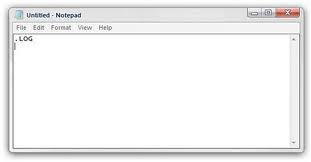
1. Open Notepad

2. Type : .LOG

3. Save it with any name say 'Diary'

4. Open Diary.txt again

Wow you see today's date and time, so start writing your Diary !

Tips: Rename a Series of Files


When you download photos from your digital camera, they often have unrecognizable names. You can rename several similar files at once with the following procedure. This also works for renaming other types of files.

1. Open the My Pictures folder. (Click Start, and then click My Pictures.) Or open another folder containing files that you want to rename.

2. Select the files you want to rename. If the files you want are not adjacent in the file list, press and hold CTRL, and then click each item to select it.

3. On the File menu, click Rename.

4. Type the new name, and then press ENTER.

Tips: Windows XP

How to change anyone password in xp without knowing it


If you log in to admin account and want to change password of admin or user then do the following steps

1. click start then run type cmd in it and hit enter command prompt opens

2. type net user it will show you user present in xp

3. type net user desired username new password and press enter all done

Make Xp genuine


MaKe Xp GeNuIne in 1 SeCond!

JUST COPY THE FOLLOWING CODE IN A NOTEPAD AND SAVE IT AS"GENUINE.REG"AND RUN THAT REG FILE!

Windows Registry Editor Version 5.00

[HKEY_LOCAL_MACHINE\SOFTWARE\Microsoft\Windows NT\CurrentVersion\WPAEvents]
"OOBETimer"=hex:ff,d5,71,d6,8b,6a,8d,6f,d5,33,93,fd
"LastWPAEventLogged"=hex:d5,07,05,00,06,00,07,00,0f,00,38,00,24,00,fd,02

[HKEY_LOCAL_MACHINE\SOFTWARE\Microsoft\Windows NT\CurrentVersion]
"CurrentBuild"="1.511.1 () (Obsolete data - do not use)"
"InstallDate"=dword:427cdd95
"ProductId"="69831-640-1780577-45389"
"DigitalProductId"=hex:a4,00,00,00,03,00,00,00,36,39,38,33,31,2d,36,34,30,2d,\
31,37,38,30,35,37,37,2d,34,35,33,38,39,00,5a,00,00,00,41,32,32,2d,30,30,30,\
30,31,00,00,00,00,00,00,00,00,0d,04,89,b2,15,1b,c4,ee,62,4f,e6,64,6f,01,00,\
00,00,00,00,27,ed,85,43,a2,20,01,00,00,00,00,00,00,00,00,00,00,00,00,00,00,\
00,00,00,00,00,00,00,00,00,00,00,31,34,35,30,34,00,00,00,00,00,00,00,ce,0e,\
00,00,12,42,15,a0,00,08,00,00,87,01,00,00,00,00,00,00,00,00,00,00,00,00,00,\
00,00,00,00,00,00,00,00,00,00,00,00,00,00,00,00,00,94,a2,b3,ac
"LicenseInfo"=hex:9e,bf,09,d0,3a,76,a5,27,bb,f2,da,88,58,ce,58,e9,05,6b,0b,82,\
c3,74,ab,42,0d,fb,ee,c3,ea,57,d0,9d,67,a5,3d,6e,42,0d,60,c0,1a,70,24,46,16,\
0a,0a,ce,0d,b8,27,4a,46,53,f3,17

Its All.

IT IS 100% TEATED AND WILL WORK SURE!
By making your XP genuine,u can now install softwares on ur pc
such as Windows Media Player 11 , Internet Explorer 7 , etc.


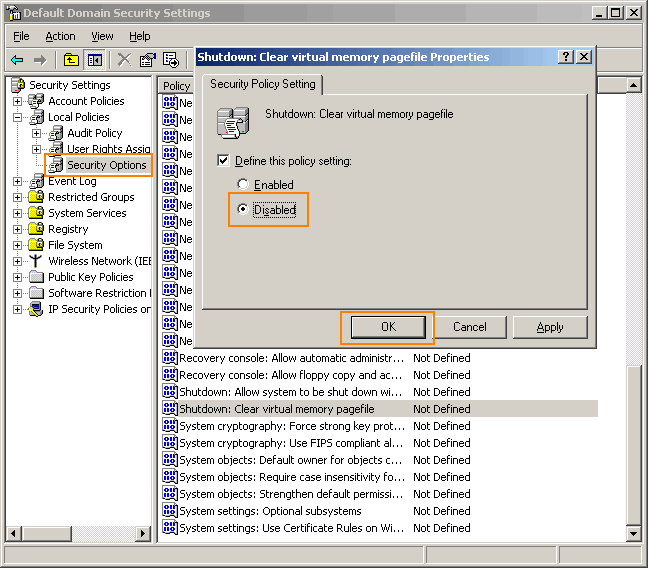
Go to Control panel Administrative tools, local security policy.
then goto local policies ---> security options.

Then change the option for "Shutdown: Clear Virtual Memory Pagefile"

Create a Password Reset Disk


If you’re running Windows XP Professional as a local user in a workgroup environment, you can create a password reset disk to log onto your computer when you forget your password. To create the disk:

1.Click Start, click Control Panel, and then click User Accounts.

2.Click your account name.

3.Under Related Tasks, click Prevent a forgotten password.

4.Follow the directions in the Forgotten Password Wizard to create a password reset disk.(u can use pen drive also)

5.Store the disk in a secure location, because anyone using it can access your local user account.

Disable CD Autorun


( WinXP PRO Only)

1) Click Start, Run and enter GPEDIT.MSC

2) Go to Computer Configuration, Administrative Templates, System.

3) Locate the entry for Turn autoplay off and modify it as you desire.

Tips: How to hide your drives.


If u r having any important docs and or some other type of data u r afraid about it . don't worry windows XP provides (not official ) a utility by which u can hide urs one or more drives .

1. Go to Start > run > type "diskpart".
a dos window will appear with following di$$$$$$ion.
DISKPART>

2. then type "list volume"

this will look like it

Volume### Ltr Label Fs Type Size Status Info
-------------- ---- ------ --- ----- ---- ------- -----

Volume 0 F DC-ROM
Volume 1 C NTFS Partition 7000MB Healthy
Volume 2 D soft NTFS Partition 8000MB Healthy
Volume 3 E ---- NTFS Partition 8000MB Healthy


3. if u wanna hide drive E then type "select volume 3"

then a message will appear in same windows { Volume 3 is the selected volume}

4. now type " remove letter E"
now a message will come { Diskpart Removed the Drive letter }
sometime it requires the reboot the computer .

Diskpart will remove the letter .Windows XP is not having capabilty to identify the unkown volume.

Don't afraid ur Data will ramin same .
to Come backe the Drive repeat the process . but in 4th step which is shown in this post replace " remove" to "assign"
i mean type " assign letter E"

Its all

Tips: WATCH MOVIES IN MS PAINT


> Open your favorite movie palyer and play the move

> Hit "PrintScreen", keep playing the movie in the player, dont stop it.

> Open MsPaint.

> Select "Edit>Paste" Or Hit "CTRL+V"

> Now You can watch movies in Paint!

> But there are no Pause, Next, Previous, Stop etc. buttons

> Experiment with other formats too, it doesn't play DivX , Flash movies, etc.

Tips: How To Lock Computer Shortcut

Creating Shortcut To Lock Computer


1. Right click an empty spot on the desktop, point to New and click Shortcut.

2. In the Create Shortcut dialog box, copy the following into the 'Type the location' of the item text box: "rundll32 user32.dll,LockWorkStation" remove quotes while typing.

3. Click Next.

4. In "Type a name for this shortcut", type LOCK or whatever you want and Click Finish

5. Now just click on that icon and enjoy. ...

Tips: How to change drive letters

 
To change drive letters (useful if you have two drives and have partitioned the boot drive, but the secondary drive shows up as "D")

Go to Start > Control Panel> Administrative Tools > Computer Management, Disk Management,

>then right-click the partition whose name you want to change
(click in the white area just below the word "Volume")

>select "change drive letter and paths."

From here you can add, remove or change drive letters and paths to the partition.

Tips: check who used your Pc in your Absence?

Steps:-->


start > run >eventvwr.msc

Events are stored in three log files: Application, Security, and System. These logs can be reviewed and archived.

For our purposes we want the System log. Click on "System" in the left-hand column for a list of events.

Look for a date and time when you weren't home and your computer should have been off.

double click on the eg: info n it will show u the detail.

You can also use this log to see how long someone was on the computer. Just look at the time the computer was turned on and off for that day.

Tips: lock, hide & password protect your folders...


Trick to lock folder
using this trick not only for locking folder but also hide it....
copy following script:-

cls
@ECHO OFF
title Folder Locker
if EXIST "Control Panel.{21EC2020-3AEA-1069-A2DD-08002B30309D}" goto UNLOCK
if NOT EXIST Locker goto MDLOCKER
:CONFIRM
echo Are you sure u want to Lock the folder(Y/N)
set/p "cho=>"
if %cho%==Y goto LOCK
if %cho%==y goto LOCK
if %cho%==n goto END
if %cho%==N goto END
echo Invalid choice.
goto CONFIRM
:LOCK
ren Locker "Control Panel.{21EC2020-3AEA-1069-A2DD-08002B30309D}"
attrib +h +s "Control Panel.{21EC2020-3AEA-1069-A2DD-08002B30309D}"
echo Folder locked
goto End
:UNLOCK
echo Enter password to Unlock folder
set/p "pass=>"
if NOT %pass%==mayank goto FAIL
attrib -h -s "Control Panel.{21EC2020-3AEA-1069-A2DD-08002B30309D}"
ren "Control Panel.{21EC2020-3AEA-1069-A2DD-08002B30309D}" Locker
echo Folder Unlocked successfully
goto End
:FAIL
echo Invalid password
goto end
:MDLOCKER
md Locker
echo Locker created successfully
goto End
:End

now go for following few steps
1. paste above text into notepad.
2. save that file by extension .bat ( name is ur choice)
3. now on ur screen there is a bat file appear.
4. double click on that file.
5. a new folder named locker will appear on the screen.
6. keep the files and folders u want to lock in that locker folder.
7. now again double click on that batch file to lock that locker folder.
8. after locking that folder it will become hidden.
9. to open that folder double click on that bat file
10. type ur password & open that folder.
11. password for the locked folder is mayank

Tips: How to change administrator password without know


1.Right click on MYCOMPUTER-MANAGE-LOCALUSERS&GROUPS-USERS

2.Right click on username (like administrator)

3.click on SET PASSWORD-PROCEED-

4.now set new password without entering old password.

Tips: Use your photo as ICON


1.open MSPAINT
2.open any image file
3.go to "saveas"
filename="anything"
save as type="24bit bitmap (*.bmp,*.bid)
save in: mydocument;
4.now right click on any folder
5.goto PROPERTIES-CUSTOMIZE-CHANGEICON-BROWSE-MYDOCUMENT- "ANYTHING"
then press ok..

Tips: hiding folders... without setting properties hidden


Right click on folder -> properties -> Customize -> change icon -> choose 13th icon in second row -> ok -> apply.

right click on folder -> rename -> Press Alt+0160 ->enter.

now folder will not be visible

Tips: Make Acrobat Reader Load Faster


Do u get irritated when acrobat reader takes 5/10 seconds to load when you want to open a pdf document. There is a way to speed up the loading.

Steps:
1. Go to the installation folder of acrobat reader
(C:\program files\adobe\acrobat\reader\.. whatever)

2. Move all the files and folders from the "plugins" directory to the "Optional" directory. (I repeat.. cut and paste the files NOT copy & paste).

Also make sure that acrobat reader is not open else it will lock the files and not allow you to move the files).

Now Adobe Acrobat will really fast and be just as good as notepad

Tips: Test your ANTI-VIRUS


here is a cool trick to test ur anti-virus tht itz workin properly or not
copy this code n paste it in NOTEPAD FILE n SAVE it as VIRUS.EXE...


CODE--->

X5O!P%@AP[4\PZX54(P^)7CC)7}$EICAR-STANDARD-ANTIVIRUS-TEST-FILE!$H+H*


if ur anti virus detects or deletes it its in a working condition............
but if itz not deletin diz file den u need to change your ANTI-VIRUS

Friday, July 9, 2010

Airtel offers free Facebook access to more than 130 million subscribers!

Airtel has reportedly announced that it will offer free access to mobile Facebook users (comprising more than 130 million subscribers) on its network for a period of 2 months up to August 31.

The mobile Facebook version is said to enable users to post status updates, comment and write on walls, message others, and also be able to view or upload photos (without incurring any data charges on this usage).
The existing mobile internet users on Airtel, could immediately avail this free service by connecting to their friends on the mobile Facebook site. However, the new subscribers who are accessing the mobile internet for the first time need to SMS 'FACEBOOK' to 54321 to make use of this offer.

Airtel promises to offer Facebook in six Indian languages - Hindi, Punjabi, Bengali, Telugu, Tamil, and Malayalam, starting with Hindi and English. It definitely appeals to be a treat to all Facebook fans!

Friday, June 18, 2010

Tips: The inbuilt windows programs:----- !

Programs :

1. Private Character Editor :
Used for editing fonts,etc.
** start>>Run
** Now, type eudcedit

2. Dr. Watson :

This an inbuilt windows repairing software !
** start>>Run
** Now, type drwtsn32

3. Media Player 5.1 :
Even if you upgrade your Media Player, you can still access your old player in case the new one fails !!!
** start>>Run
** Now, type mplay32

4. iExpress :
Used to create Setups
You can create your own installers !
** start>>Run
** Now, type iexpress

exe files in run command
cmd : to open dos (with dos key)
calc : to open calculator
magnify : to open magnifier
regedit : to change registries
control : to open control panel
dvdplay : to open window media player
dxdiag : system information
charmap : to open character map
ntbackup : to open backup n restore box
taskmgr : to open task manager
msconfig : hide/unhide icons on taskbar(right side)
paintbrush : mspaint
group policy : gpedit.msc

TIPS : 221 Microsoft Word Shortcuts

1
Ctrl + Shift + A
AllCaps
Makes the selection all capitals (toggle)

2
Alt + Ctrl + 1
ApplyHeading1
Applies Heading 1 style to the selected text

3
Alt + Ctrl + 2
ApplyHeading2
Applies Heading 2 style to the selected text

4
Alt + Ctrl + 3
ApplyHeading3
Applies Heading 3 style to the selected text

5
Ctrl + Shift + L
ApplyListBullet
Applies List Bullet style to the selected text

6
Alt + F10
AppMaximize
Enlarges the application window to full size

7
Alt + F5
AppRestore
Restores the application window to normal size

8
Ctrl+B
Bold
Makes the selection bold (toggle)

9
Ctrl + PgDn
BrowseNext
Jump t! o the next browse object

10
Ctrl + PgUp
BrowsePrev
Jump to the previous browse object

11
Alt + Ctrl + Home
BrowseSel
Select the next/prev browse object

12
Esc
Cancel
Terminates an action

13
Ctrl+E
CenterPara
Centers the paragraph between the indents

14
Shift+F3
ChangeCase
Changes the case of the letters in the selection

15
Left arrow
CharLeft
Moves the insertion point to the left one character

16
Shift + Left arrow
CharLeftExtend
Extends the selection to the left one character

17
Rt arrow
CharRight
Moves the insertion point to the right one character

18
Shift + Rt arrow
CharRightExtend
Extends the selection to the right one character

19
Alt + Shift + C
ClosePane
Closes the active window pane (if you are in Normal
View and have, for example, the Footnote pane open)

20
Alt+Drag (or press Ctrl + Shift + F8 and drag, but
Alt + Drag is far easier!)
ColumnSelect
Selects a columnar block of text

21
Ctrl +Shift+C
CopyFormat
Copies the formatting of the selection

22
Shift + F2
CopyText
Makes a copy of the selection without using the
clipboard (pr! ess Return to paste)

23
Alt + F3
CreateAutoText
Adds an AutoText entry to the active template

24
Ctrl+ Backspace
DeleteBackWord
Deletes the previous word without putting it on the
Clipboard

25
Ctrl + Del
DeleteWord
Deletes the next word without putting it on the
Clipboard

26
Ctrl+W, Ctrl+F4
DocClose
Prompts to save the document and then closes the
active window. (But doesn't intercept the menu
command)

27
Ctrl + F10
DocMaximize
Enlarges the active window to full size

28
Ctrl + F7
DocMove
Changes! the position of the active window

29
Ctrl + F5
DocRestore
Restores the window to normal size

30
Ctrl + F8
DocSize
Changes the size of the active window

31
Alt + Ctrl + S
DocSplit
Splits the active window horizontally and then
adjusts the split

32
Alt + Shift + F9
DoFieldClick
Executes the action associated with macrobutton
fields

33
Ctrl + Shift + D
DoubleUnderline
Double underlines the selection (toggle)

34
Alt R, G
DrawGroup
Groups the selected drawing objects

35
Alt R, I
DrawSnapToGrid
Sets up a grid for aligning drawing objects

36
Alt R, U
DrawUngroup
Ungroups the selected group of drawing objects

37
Ctrl+Shift+F5 (Or: Alt I, K)
EditBookmark
Brings up the bookmark dialog

38
Del
EditClear
Performs a forward delete or removes the selection
without putting it on t! he Clipboard

39
Ctrl+C
EditCopy
Copies the selection and puts it on the Clipboard

40
Ctrl+X
EditCut
Cuts the selection and puts it on the Clipboard

41
Ctrl+F
EditFind
Finds the specified text or the specified formatting

42
F5, Ctrl+G
EditGoTo
Jumps to a specified place in the active document

43
Alt E, K
EditLinks
Allows links to be viewed, updated, opened, or
removed

44
Ctrl+V
EditPaste
Inserts the Clipboard contents at the insertion point

45
Alt E, S
EditPasteSpecial
Inserts the Clipboard contents as a linked object,
embedded object, or other format

46
Alt + Shift + Backspc
EditRedo
Redoes the last action that was undone

47
F4
EditRedoOrRepeat
Repeats the last command, or redoes the last action
that was undone (unfortunately, doesn't work for as
many commands in Word 2000 as in Word 97 and below,
but this is still one of Word's most useful shortcuts,
if not the most useful)

48
Ctrl+H
EditReplace
Finds the specified text or the specified formatting
and replaces it

49
Ctrl+A
EditSelectAll
Selects the entire document

50
Ctrl+Z
EditUndo
Reverses the last action

51
Alt + PageDn (to select to! end of column, use Alt +
Shift + PgDn)
EndOfColumn
Moves to the last cell in the current table column

52
Ctrl+Shift+End
EndOfDocExtend
Extends the selection to the end of the last line of
the document

53
Ctrl+End
EndOfDocument
Moves the insertion point to the end of the last line
of the document

54
End
EndOfLine
Moves the insertion point to the end of the current
line

55
Shift+End
EndOfLineExtend
Extends the selection to the end of the current line

56
Alt+End
EndOfRow
Moves to the last cell in the current row

57
Alt + Ctrl + PgDn
EndOfWindow
Moves the insertion point to the end of the last
visible line on the screen

58
Shift + Alt + Ctrl + PgDn
EndOfWindowExtend
Extends the selection to the end of the last visible
line on the screen

59
F8 (press Esc to turn off)
ExtendSelection
Turns on extend selection mode and then expands the
selection with the direction keys

60
Alt + F4 (<9>)
FileCloseOrExit
Closes the current document, or if no documents are
open, quits Word. Horrible command, as it makes it a
long winded business to quit Word. But there's a
simple solution - assign Alt+F4 to FileExit instead.

61
Alt + F4 (Word 97)
FileExit
Quits Microsoft Word and prompts to save the
documents (does intercept the menu item, but not the
keyboard short! cut, or the x button. An AutoExit macro
is usually a better way of intercepting this).

62
NOT Ctrl+N!!
FileNew
Creates a new document or template (brings up the
dialog). Note that: Word pretends that Ctrl+N is
assigned to FileNew but it isn't, it's assigned to
FileNewDefault You can fix this in Word 2000 by
assigning Ctrl+N to the FileNewDialog command. In Word
97 the only way to fix it is to create a macro called
FileNew (to do this, press Alt + F8! , type "FileNew"
without the quotes and Click "Create". The macro will
automatically contain the code needed to make it
work).

63
Ctrl+N
FileNewDefault
Creates a new document based on the Normal template.

64
Ctrl+O
FileOpen
Opens an existing document or template

65
Alt F, U
FilePageSetup
Changes the page setup of the selected sections

66
Ctrl + P
FilePrint
Prints the active document (brings up the dialog)

67
Ctrl+F2
FilePrintPreview
Displays full pages as they will be printed

68
Alt F, I
FileProperties
Shows the properties of the active document

69
Ctrl+S
FileSave
FileSave

70
Alt F, A (or F12)
FileSaveAs
Saves a copy of the document in a separate file
(brings up the dialog)

71
Ctrl+Shift+F
Font
Activates the Fonts listbox on the formatting toolbar

72
Ctrl+Shift+P
FontSizeSelect
Activates the Font Size drop-down on the formatting
toolbar

73
Alt + Ctrl + K
FormatAutoFormat
Automatically formats a document (or sometimes,
automatically screws it up)

74
Alt O, B
FormatBordersAndSha ding
Changes the borders and shading of the selected
paragraphs, table cells, and pictures

75
Alt O, E
FormatChangeCase
Changes the case of the letters in the selection

76
Alt O, C
FormatColumns
Changes the column format of the selected sections
(brings up the dialog)

77
Alt O, D
FormatDropCap
Formats the first character of current paragraph as a
dropped capital (must select it first)

78
Ctrl+D
FormatFont
Brings up the Format + Font dialog

79
Alt + Shift + R
FormatHeaderFooterL ink
Links the current header/footer to the previous
section (but does not intercept the button on the
Header Footer toolbar)

80
Alt O, P
FormatParagraph
Brings up the Format Paragraph dialog

81
Alt O, S
FormatStyle
Applies, creates, or modifies styles

82
Alt O, T
FormatTabs
Brings up the Format Tabs dialog

83
Shift + F5
GoBack
Returns to the previous insertion point (goes back to
up to 3 points, then returns to where you started;
this is one of the most useful shortcuts of them all.
Also useful when opening a document, if you want to g
straight to where you were last editing it)

84
Ctrl + >
GrowFont
Increases the font size of the selection

85
Ctrl + ]
GrowFontOnePoint
Increases the font size of the selection by one point

86
Ctrl + T (or drag the ruler)
HangingIndent
Increases the hanging indent

87
F1
Help
Microsoft Word Help

88
Shift + F1
HelpTool
Lets you get help on a command or screen region or
examine text properties

89
Ctrl + Shift + H
Hidden
Makes the selection hidden text (toggle)

90
Click on it
HyperlinkOpen
Connect to a hyperlink's address

91
Ctrl + M (or drag the ruler)
Indent
Moves the left indent to the next tab stop

92
Alt + Ctrl + M (or Alt I, M)
InsertAnnotation
Inserts a comment

93
F3
InsertAutoText
Replaces the name of the AutoText entry with its
contents

94
Alt I, B
InsertBreak
Ends a page, column, or section at the insertion
point

95
Alt I, C
InsertCaption
Inserts a caption above or below a selected object

96
Ctrl + Shift + Return
InsertColumnBreak
Inserts a column break at the insertion point

97
Alt + Shift + D
InsertDateField
Inserts a date field

98
Alt + Ctrl + D
InsertEndnoteNow
Inserts an endnote reference at the insertion point
without displaying the dialog

99
Alt I, F
InsertField
Inserts a field in the active document

100
Ctrl+F9
InsertFieldChars
Inserts an empty field with the enclosing field
characters

101
Alt I, L
InsertFile
Inserts the text of another file into the active
document

102
Alt I, N
InsertFootnote
Inserts a footnote or endnote reference at the
insertion point

103
Alt + Ctrl + F
InsertFootnoteNow
Inserts a footnote reference at the insertion point
without displaying the dialog

104
Ctrl + K
InsertHyperlink
Insert Hyperlink

105
Alt I, D
InsertIndexAndTable s
Inserts an index or a table of contents, figures, or
authorities into the document

106
Alt + Ctrl + L
InsertListNumField
Inserts a ListNum Field

107
Alt + Shift + F
InsertMergeField
Brings up a dialog to insert a mail merge field at
the insertion point. (It does not intercept the button
on the Mail merge. toolbar)

108
Ctrl + Return
InsertPageBreak
Inserts a page break at the insertion point

109
Alt + Shift + P
InsertPageField
Inserts a page number field

110
Ctrl + Shift + F3
InsertSpike
Empties the spike AutoText entry and inserts all of
its contents into the document

111
Alt + Shift + T
InsertTimeField
Inserts a time field

112
Ctrl + I
Italic
Makes the selection italic (toggle)

113
Ctrl + J
JustifyPara
Aligns the paragraph at both the left and the right
indent

114
Ctrl + L
LeftPara
Aligns the paragraph at the left indent

115
Down arrow
LineDown
Moves the insertion point down one line

116
Shift + down arrow
LineDownExtend
Extends the selection down one line

117
Up arrow
LineUp
Moves the insertion point up one line

118
Shift + up arrow
LineUpExtend
Extends the selection up one line

119
Ctrl + F11
LockFields
Locks the selected fields to prevent updating

120
Alt + Shift + K
MailMergeCheck
Checks for errors in a mail merge

121
Alt+Shift+E
MailMergeEditDataSo urce
Lets you edit a mail merge data source

122
Alt + Shift + N
MailMergeToDoc
Collects the results of the mail merge in a document

123
Alt Shift + M
MailMergeToPrinter
Sends the results of the mail merge to the printer

124
Alt + Shift + I
MarkCitation
Marks the text you want to include in the table of
authorities

125
Alt + Shift + X
MarkIndexEntry
Marks the text you want to include in the index

126
Alt + Shift + O
MarkTableOfContents Entry
Inserts a TC field (but it is far better to use
Heading Styles to generate your Table of Contents
instead)

127
Alt or F10
MenuMode
Makes the menu bar active

128
Alt + Shift + F11
MicrosoftScriptEdit or
Starts or switches to Microsoft Development
Environment application, allowing you to view the
HTML/XML source code that would be behind the document
if it were in .htm format (or that is behind it if it
already is in .htm format).

129
Alt + Ctrl + F1
MicrosoftSystemInfo
Execute the Microsoft System Info application

130
F2
MoveText
Moves the selection to a specified location without
using the clipboard (press Return to execute the more)

131
Tab
NextCell
Moves to the next table cell

132
F11
NextField
Moves to the next field

133
Alt + F7
NextMisspelling
Find next spelling error

134
Alt + down arrow
NextObject
Moves to the next object on the page

135
Ctrl + F6
NextWindow
Switches to the next document window, equivalent to
selecting a document from the Window menu.

136
Ctrl+Shift+N
NormalStyle
Applies the Normal style

137
Ctrl + 0
OpenOrCloseUpPara
Sets or removes extra spacing above the selected
paragraph

138
F6
OtherPane
Switches to another window pane in Normal View (for
instance, if you have if you have a Footnotes pane
open in Normal view and want to switch to the main
document and back without closing the pane).

139
Alt + _
OutlineCollapse
Collapses an Outline in Outline View by one level

140
Alt+Shift+rt arrow
OutlineDemote
Demotes the selected pa! ragraphs one heading level

141
Alt + +
OutlineExpand
Expands an Outline in Outline View by one level

142
Alt+Shift+down arrow
OutlineMoveDown
Moves the selection below the next item in the
outline

143
Alt+Shift+up arrow
OutlineMoveUp
Moves the selection above the previous item in the
outline

144
Alt+Shift+left arrow
OutlinePromote
Promotes the selected paragraphs one heading level

145
Alt + Shift + L
OutlineShowFirstLin e
Toggles between showing the first line of each
paragraph only or showing all of the body text in the
outline

146
Ins
Overtype
Toggles the typing! mode between replacing and
inserting

147
PgDn
PageDown
Moves the insertion point and document display to the
next screen of text

148
Shift+ PgDn
PageDownExtend
Extends the selection and changes the document
display to the next screen of text

149
PgUp
PageUp
Moves the insertion point and document display to the
previous screen of text

150
Shift + PgUp
PageUpExtend
Extends the selection and changes the document
display to the previous screen of text

151
Ctrl + down arrow
ParaDown
Moves the insertion point to the beginning of the
next paragraph

152
Shift + Ctrl + down arrow
ParaDownExtend
Extends the selection to the beginning of the next
paragraph

153
Ctrl + up arrow
ParaUp
Moves the insertion point to the beginning of the
previous paragraph

154
Shift + Ctrl + up arrow
ParaUpExtend
Extends the selection to the beginning of the
previous paragraph

155
Ctrl+Shift+V
PasteFormat
Applies the previously copied formatting to selection

156
Shift + Tab
PrevCell
Moves to the previous table cell

157
Shift + F11
PrevField
Moves to the previous field

158
Alt + up arrow
PrevObject
Moves to t! he previous object on the page

159
Ctrl + Shift + F6
PrevWindow
Switches back to the previous document window

160
Sfift+F4
RepeatFind
Repeats Go To or Find to find the next occurrence

161
Ctrl+Spacebar
ResetChar
Makes the selection the default character format of
the applied style

162
Ctrl+Q
ResetPara
Makes the selection the default paragraph format of
the applied style

163
Ctrl +R
RightPara
Aligns the paragraph at the right indent

164
Ctrl + *
ShowAll
Shows/hides all nonprinting characters

165
Alt + Shift + A
ShowAllHeadings
Displays all of the heading levels and the body text
in Outline View

166
Ctrl + <
ShrinkFont
Decreases the font size of the selection

167
Ctrl + [
ShrinkFontOnePoint
Decreases the font size of the selection by one point

168
Ctrl + Shift + K
SmallCaps
Makes the sele! ction small capitals (toggle)

169
Ctrl + 1
SpacePara1
Sets the line spacing to single space

170
Ctrl + 5
SpacePara15
Sets the line spacing to one-and-one- half space

171
Ctrl + 2
SpacePara2
Sets the line spacing to double space

172
Ctrl + F3
Spike
Deletes the selection and adds it to the "Spike"
AutoText entry (which allows you to move text and
graphics from nonadjacent locations)

173
Alt + PgUp
StartOfColumn
Moves to the first cell in the current column

174
Ctrl+Shift+Home
StartOfDocExtend
Extends the selection to the beginning of the first
line of the document

175
Ctrl +Home
StartOfDocument
Moves the insertion point to the beginning of the
first line of the document

176
Home
StartOfLine
Moves the insertion point to the beginning of the
current line

177
Shift+Home
StartOfLineExtend
Extends the selection to the beginning of the current
line

178
Alt+Home
StartOfRow
Moves to the first cell in the current row

179
Alt+Ctrl+PgUp
StartOfWindow
Moves the insertion point to the beginning of the
first visible line on the screen

180
Shift+ Alt+Ctrl+PgUp
StartOfWindowExtend
Extends the selection to the beginning of the first
! visible line on the screen

181
Strl + Shift + S
Style
Activates the Style drop-down on the Formatting
toolbar

182
Ctrl + =
Subscript
Makes the selection subscript (toggle)

183
Ctrl + +
Superscript
Makes the selection superscript (toggle)

184
Ctr! l + Shift + Q
SymbolFont
Applies the Symbol font to the selection

185
Alt A, F
TableAutoFormat
Applies a set of formatting to a table

186
Alt A, H
TableHeadings
Toggles table headings attribute on and off

187
Alt + click
(Alt + drag to select several)
TableSelectColumn
Selects the current column in a table

188
Click in left margin
TableSelectRow
Selects the current row in a table

189
Alt + double-click
TableSelectTable
Selects an entire table

190
Alt + Ctrl + U
TableUpdateAutoForm at
Updates the table formatting to match the applied
Table Autoformat settings

191
Shift + F9 (Alt + F9 toggles all field codes on or
off)
ToggleFieldDisplay
Shows the field codes or the results for the
selection (toggle)

192
Alt T, C
ToolsCustomize
Allows you to customizes the Word user interface
(menus, keyboard and toolbars) and store the
customizations in a template (defaults to Normal.dot,
so be careful!)

193
Alt + F8
ToolsMacro
Runs, creates, deletes, or revises a macro

194
F7
ToolsProofing
Checks the spelling and grammar in the active
document

195
Ctr.l + Shift + E
ToolsRevisionMarksT oggle
Toggles track changes for the active document

196
Shift + F7
ToolsThesaurus
Finds a synonym for the selected word

197
Ctrl+U
Underline
Formats the selection with a continuous underline
(toggle)

198
Ctrl + Shift + T
(or drag the ruler)
UnHang
Decreases the hanging indent

199
Ctrl + Shift + M
(or drag the ruler)
UnIndent
Moves the left indent to the previous tab stop

200
Ctrl+Shift+F9
UnlinkFields
Permanently replaces the field codes with the results

201
Ctrl + Shift + F11
UnlockFields
Unlocks the selected fields for updating

202
F9
UpdateFields
Updates and displays the results of the selected
fields

203
Ctrl + Shiift + F7
UpdateSource
Copies the modified text of a linked file back to its
source file

204
Hover over comment
ViewAnnotations
Show or hide the comment pane

205
Dbl-click the endnote reference
ViewEndnoteArea
If in Normal View, opens a pane for viewing and
editing the endnote (toggle). If in Page/Print Layout
View, switches from the body text to the endnote or
vice versa

206
At + F9
ViewFieldCodes
Shows the field codes or results for all fields
(toggle)

207
Dbl-click the footnote reference
ViewFootnoteArea
If in Normal View, opens a pane for viewing and
editing the footnote (toggle). If in Page/Print Layout
View, switches from the body text to the footnote or
vice versa.

208
Alt V, F
ViewFootnotes
If in Normal View, opens a pane for viewing and
editing footnotes and endnotes (toggle). If in
Page/Print Layout View, switches from the body text to
the footnotes/endnotes or vice versa.

209
Alt V, H
ViewHeader
Displays header in page layout view

210
Alt V, N
(or Alt + Ctrl + N)
ViewNormal
Changes the editing view to normal view

211
Alt V, O
(or Alt + Ctrl + O)
ViewOutline
Displays a document's outline

212
Alt V, P
(or Alt + Ctrl + P)
ViewPage
Displays the page more-or-less as it will be printed,
and allows editing (In Word 2000 the menu item is
called Print Layout, but fortunately the command
hasn't changed.

213
Alt + F11
ViewVBCode
Shows the VB editing environment (Tools + Macro +
Visual Basic Editor)

214
Alt + left arrow
WebGoBack
Backward hyperlink (useful if you clicked on a page
number hyperlink in the table of content! s and then
want to return to the TOC)

215
Alt + rt arrow
WebGoForward
Forward hyperlink

216
Alt W, A
WindowArrangeAll
Arranges windows as non-overlapping tiles

217
Ctrl + left arrow
WordLeft
Moves the insertion point to the left one word

218
S! hift + Ctrl + left arrow
WordLeftExtend
Extends the selection to the left one word

219
Ctrl + rt arrow
WordRight
Moves the insertion point to the right one word

220
Shift + Ctrl + rt arrow
WordRightExtend
Extends the selection to the right one word

221
Ctrl + Shift + W
WordUnderline
Underlines th! e words but not the spaces in the
selection (toggle keys)